
Intro
The Change Tracker is a single place to see everything on the project that could constitute a change, variation, compensation event or claim, and to build it into something you can put in front of a client or a subcontractor. Potential change is collected automatically from the rest of Shape, so nothing recorded on site is lost between the site team and the commercial team.
There are two tabs:
- Records — the individual events collected from elsewhere in Shape, waiting to be reviewed.
- Changes — the Changes you have built from those records.
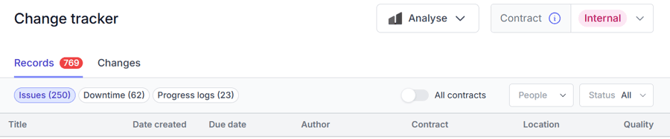
The Change Tracker, showing the Records and Changes tabs.
Where records come from
Records are created automatically — you do not add them by hand:
- Issues — every new issue raised in the Issue Tracker.
- Downtime — any downtime or delay event recorded in a Shift Report.
- Progress logs — any progress log marked as having an issue, or as being out of contract works.
Because records come straight from site, they reflect what was actually recorded at the time, which is what makes them useful as evidence later.
Contracts
Contracts define the contractual direction of different work packages. They help filter and define your change records, and at least one contract must be set up before you can use the Change Tracker.
Set them up in Admin > Contracts, using New contract:
- Contract title and Contract type
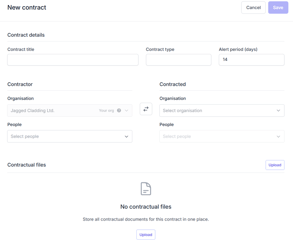
- Alert period (days) — sets the due date on records raised under this contract. Default is 14.
- Contractor and Contracted — the two organisations, and the people on each side.
- Contractual files — upload the contract itself and any related documents. The Narrative feature reads these.
Setting up a new contract in Admin > Contracts.
Due dates
Every record is given a due date, set by the alert period on its contract. It is a prompt to review the event and get a notice out inside the contractual window, not a deadline for closing out the Change. Overdue records are flagged in red.
Processing records into Changes
Click a record to open it in the panel on the right. Use Link to record to jump to the original issue, downtime entry or progress log.
Select one or more records, then choose:
- Dismiss — marks the record reviewed, where there is no commercial consequence. It is not deleted; set the Status filter to Reviewed or All to find it again.
- Link to change — attaches the records to an existing Change.
- Link to new change — creates a new Change with those records attached.
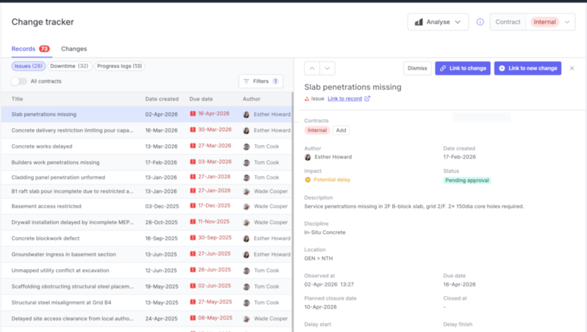
A record open in the preview panel, with the Dismiss, Link to change and Link to new change actions.
A Change can hold many records or none at all, the same record can be linked to more than one Change, and you can link or unlink at any time from inside the Change.
Changes
Open the Changes tab to see every Change for the contract you have selected, then click one to open it. Each Change has a title, author and date at the top, and five tabs.
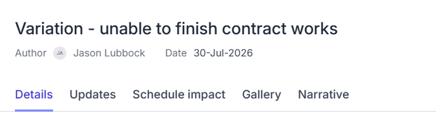
The header and tabs of an open Change.
Details - Where the commercial detail goes:
- Body message
- Priority
- Responsible
- Status
- Estimated cost impact and Cost
- Formally notified date
- Estimated schedule impact and Working days of delay
- Internal notes — left out of the external export
Linked records sit below the fields. Unlink anything that does not belong, or use Link records to add more.
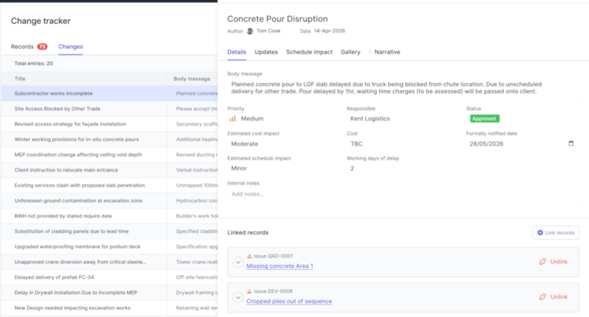
A Change open on the Details tab, with its linked records underneath.
Updates - A feed of every update made to the Change: what changed, who changed it and when.
Schedule impact - A Gantt view that lets you show the impact an issue or a Change had, or is having, on scheduled activities. Where activities have issues or blockers linked to them, those appear on the timeline, and turning on planned dates lets you compare planned against actual start and finish dates.
This tab is covered in more detail in its own article.
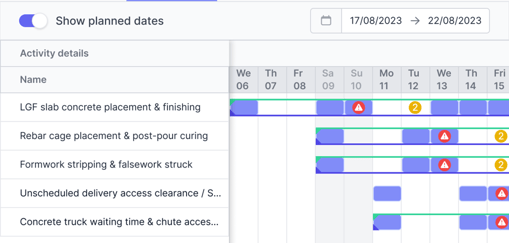
The Schedule impact tab, showing affected activities against planned dates.
Gallery - Photos, PDFs, drawings, correspondence and any other media from outside Shape that forms part of the change story. Anything added here is available to the narrative and the export.
Narrative - Narrative is a new AI feature. It drafts a formal change narrative — an evidence summary setting out cause and effect — using everything held against the Change:
- the records compiled into the Change,
- the documents and media in the Gallery,
- and your contract, where it has been uploaded into the Contracts section of Shape.
The draft references the records it has drawn on, so you can trace each statement back to the source record.
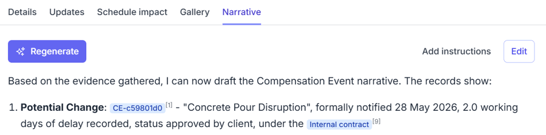
The Narrative tab, with the Regenerate, Add instructions and Edit controls.
You can steer the output. Use Add instructions to tell it what to concentrate on — a particular cost impact, a specific period of delay, a clause you are relying on — then Regenerate.

Adding custom instructions before regenerating the narrative.
Use Edit to adjust the wording yourself. Treat the result as a well-evidenced first draft rather than a finished notice, and always read it against the contract before it goes out.
Exporting a Change
Use Export to produce a PDF of the Change: a summary of the details, followed by all the attached records and photos. There are two versions: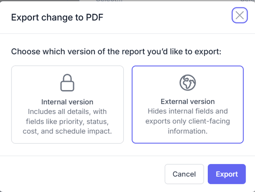
- Internal — includes everything, such as priority, status, cost and schedule impact.
- External — hides the internal fields and exports client-facing information only.
Need more help?
Email support@shape.construction, or use the Send feedback option in the account menu.