
Locations in Shape allow you to organise your project by physical areas — such as buildings, levels, and zones. Setting up a clear location hierarchy helps keep data structured and makes it easier to report, plan, and track work on-site.
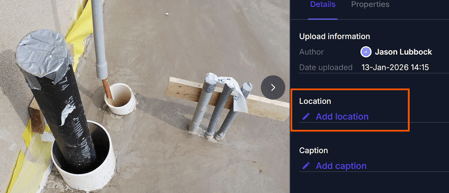
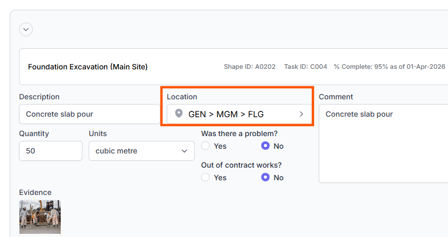
Locations can be assigned to documents and records throughout Shape.
Each project has a location tree, where parent locations can have multiple child locations underneath.
How to Access the Location Builder
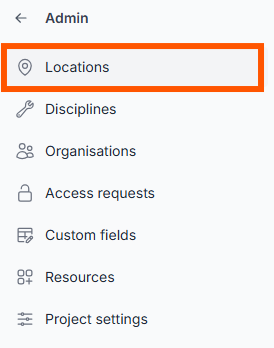
To start setting up your project’s location structure, go to Admin > Locations.
How to Build the Location Tree
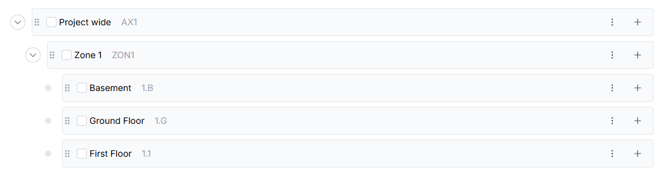
In Shape, your locations are visualised as a hierarchy. You can break down the project into logical areas — for example:
-
Project
-
Building A
-
Level 1
-
Level 2
-
-
Building B
-
Each new location sits underneath another, forming a structure that matches your site layout.
Adding a Location
To add a new location:
-
Click the + icon next to the project node or any location node.
-
Enter:
-
Location Name (e.g. "Level 1")
-
Short Code (e.g. "L1") – a quick reference used across the platform
-
Pro Tip: We suggest setting up broader overview locations first, then adding more specific levels or rooms as your project progresses.
How to Edit and Organise Locations
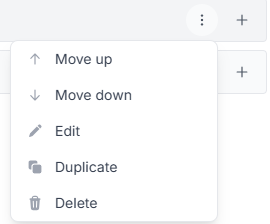
Each location has a three-dot menu (⋯) with options to:
-
Edit the name or short code
-
Move Up / Move Down to change order in the list
-
Duplicate the location setup
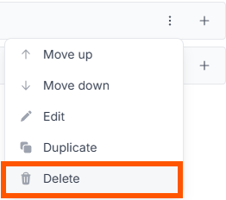
- Delete the location - Note this only deletes that line item, to remove an entire branch, select the check-box and click “Delete selected”.
You can also drag and drop locations using the handle on  the left side of the row. This allows you to:
-
Move a location to a different parent node
-
Nest locations to reflect structural changes on-site
Deleting Locations
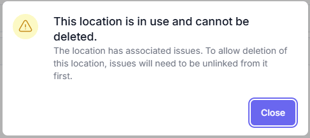
Locations can be deleted at any time as long as there are no records linked to them.
- Select the location’s three-dot menu (⋯) and click “delete”.
- To delete a parent-location and all its sub-locations, select the parent location’s check box and click “Delete selected”.

Note: A location cannot be deleted while records are still linked to it. They must be unlinked first.
Updating Locations During the Project
You can update your location tree at any time:
-
Add or rename locations if the site layout changes
-
Drag and drop to restructure the hierarchy
-
Changes are applied automatically wherever locations are used — keeping your data consistent and up to date
Summary of Key Features
-
Create a hierarchical location tree to match your project layout
-
Use names and short codes to clearly define each location
-
Manage structure using drag-and-drop and the three-dot menu
-
Update, edit and remove locations at any time as your project evolves
-
Locations are referenced across Shape tools to provide project context
For help setting up your location structure or adjusting it during the project, contact the support team at any time.